
Move your servers to VirtlixCP
Coming from SynergyCP, EasyDCIM, Tenantos or NOC-PS, or running VPSes on Virtualizor, SolusVM or Proxmox VE? Import them yourself or plan the move with us, and your current panel keeps running until you switch.
What moves over
- Servers and their hardware details
- IPMI addresses and credentials
- Switches, ports and VLANs
- IP ranges and assignments
- Client accounts and server ownership
- OS templates and install scripts
Built-in importers
Bare metal servers
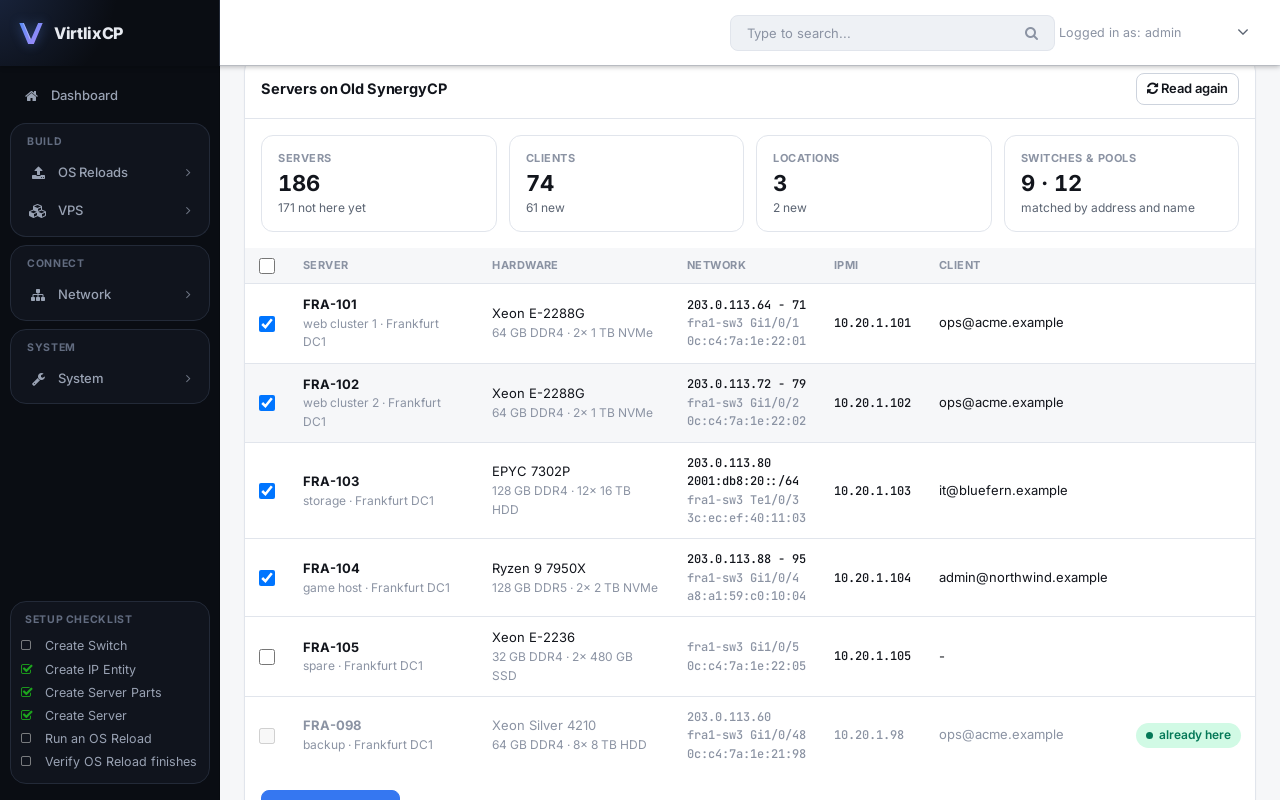
From SynergyCP or another VirtlixCP, under VPS, Import.
Connect with an API key
Add your old panel's API address and an admin API key. It is only read; nothing changes there.
Preview, then import
See every server with its hardware, IPs, MACs, switch port, IPMI and client, and import all of them or the ones you pick.
Everything they use
Locations, parts, switches with their logins, IP pools and clients come along, matched to what you already have.
Safe to repeat
Servers already imported are skipped, so you can move in batches. Nothing is sent to your switches or IPMI.
KVM VPSes
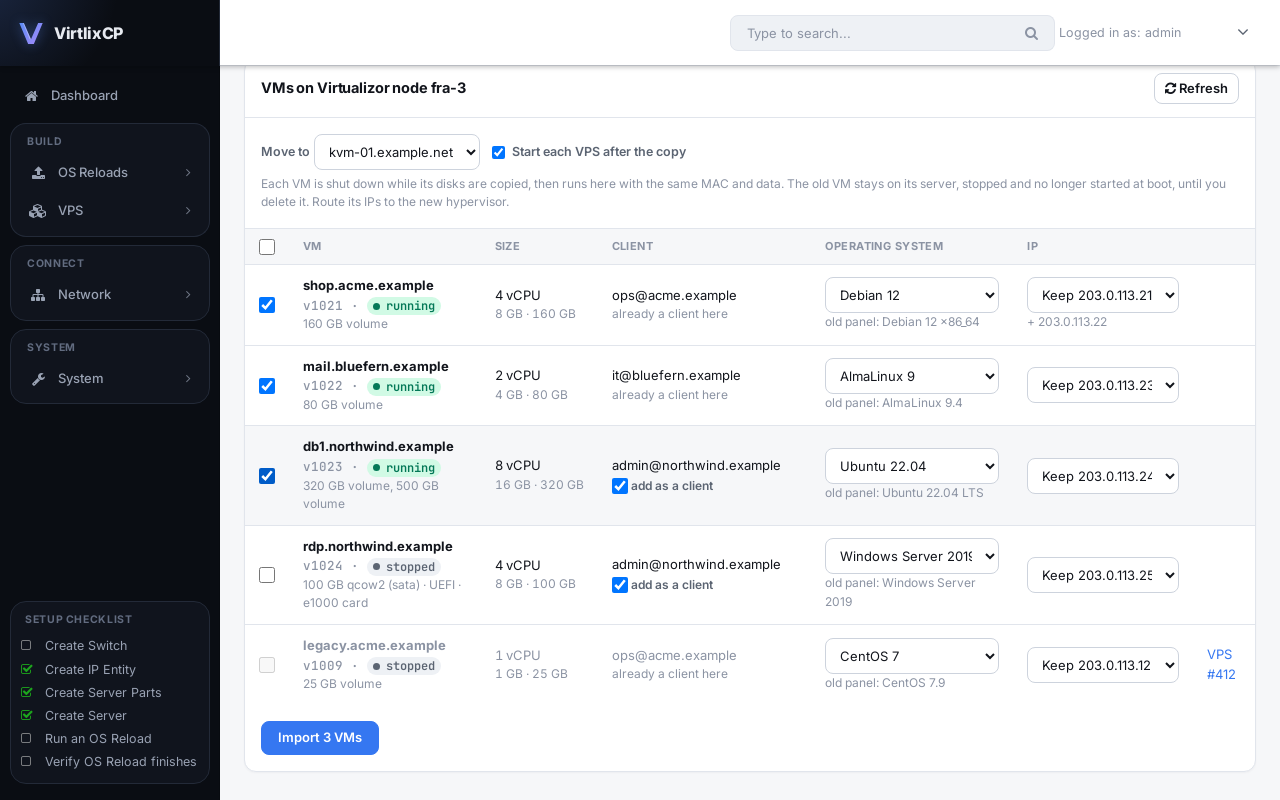
From Virtualizor, SolusVM, Proxmox VE, the Virtlix VPS panel or any libvirt server.
Read from the old panel
Hostnames, IPs, clients and operating systems come from the old panel's own records.
Copied with their data
Each VM is shut down, its disks are copied to your hypervisor, and it starts there with the same MAC and IPs.
Boots as it did
The disk type, network card and BIOS or UEFI setting stay the same, so the system inside needs no changes.
A way back
The old VM stays on its server, stopped, until you delete it. How importing works.
How it works
Tell us what you run
Your current panel, how many servers and locations, and your switch and IPMI vendors.
Install VirtlixCP next to it
VirtlixCP runs on its own server, so nothing changes for your clients yet.
Import and check
Your inventory, IPs, clients and VPSes are imported, with the built-in importers or by us, then power control and OS reloads are tested on real servers.
Switch over
Point DHCP and your clients at VirtlixCP in a maintenance window you choose.